How to Choose the Best Computer Screen?
Choosing the best computer screen is no longer a simple search for the largest panel. Buyers now compare resolution, refresh rate, color accuracy, connectivity, ergonomics, and energy use. The right choice depends on the work in front of you.
The market is changing quickly. IDC’s Worldwide Quarterly PC Monitor Tracker reported that global monitor shipments fell 6.1% in 2023, reaching about 122.8 million units. This decline suggests that buyers may be replacing screens more carefully. They are also expecting longer service life. DataReportal’s Digital 2024 report found that internet users spend approximately 6 hours and 40 minutes online each day. That figure strengthens the case for comfortable viewing, adjustable stands, and sensible brightness settings. A sharp image matters. So does the neck angle after six hours.
This guide examines screen size, panel technology, resolution, refresh rate, response time, and workplace comfort. It also considers color workflows for creators and motion clarity for gamers. VESA’s DisplayHDR standards offer useful testing references, but certification alone cannot guarantee an excellent experience. A display may pass a specification test and still look unpleasant in a dim room. That detail is easy to overlook. Personal vision, desk depth, lighting, and computer hardware can change the result. There is no universal winner, although careful comparisons reduce expensive mistakes. Some recommendations may remain imperfect because manufacturers measure features under controlled conditions, not inside your actual workspace. The most reliable decision combines independent measurements, practical experience, warranty terms, and honest reflection about daily use.
Define Your Main Uses and Screen Requirements
How to Choose the Best Computer Screen?
Your main use should decide the screen, not a glossy specification sheet. For office work, prioritize readable text, height adjustment, and a matte surface. A 24- or 27-inch screen usually gives documents enough space without forcing constant head movement. For photo or video work, accurate color matters more than extreme refresh rates. Look for measured coverage of sRGB or wider color spaces, plus a calibration report.
Gaming and fast editing need different priorities. A high refresh rate can make motion feel smoother, but only when the computer can produce matching frame rates. For coding, spreadsheets, or research, resolution and screen area often matter more. DataReportal’s Digital 2024 Global Overview estimates that internet users spend about 6 hours and 40 minutes online daily. That number makes comfort a practical requirement, not a luxury. It also makes me question my old habit of judging screens by brightness alone.
Do not ignore viewing distance. At roughly an arm’s length, a 27-inch 1440p screen can provide crisp text without excessive scaling. Longer sessions call for controlled brightness, stable viewing angles, and comfortable contrast.
The American Optometric Association supports the 20-20-20 practice: every 20 minutes, look 20 feet away for 20 seconds. Pew Research Center reported in 2024 that 41% of U.S. adults go online almost constantly. Your screen may be part of a very long workday. I still prefer testing text at actual desk distance, because specifications cannot predict every person’s comfort.
Choose the Right Screen Size and Viewing Distance
Choosing a computer screen starts with the space between your eyes and the display. Distance matters. A large panel can feel immersive, yet it may force constant head movement on a shallow desk. For a typical desk, measure from your seated eyes to the screen before shopping. Around 50 to 75 centimeters is a practical starting range for many adults, but comfort should guide the final choice. Sit naturally, place the screen at arm’s length, and check whether you can read text without leaning forward.
Screen size and viewing distance should work as a pair. A compact display may suit a narrow desk, while a wider display needs more depth or a lower viewing scale. If text looks tiny at the recommended distance, increase its size through the operating system rather than moving closer. Higher pixel density often makes letters cleaner, but it does not fix poor posture. Keep the top edge near eye level, with the center slightly below your natural gaze. Your neck will notice mistakes quickly.
I have found that a screen can look excellent in a showroom and still feel tiring after two hours. Test it with documents, spreadsheets, and dark text on a pale background. Watch for squinting, frequent repositioning, or a habit of leaning in. Those signs suggest the setup, not just the screen, needs adjustment. I sometimes choose a smaller panel than expected because my desk is shallow. It is not the most impressive choice, but it is more usable. Leave room for a small adjustment period; comfort is personal, and my first estimate is not always right.
Compare Resolution, Panel Types, and Image Quality
How to Choose the Best Computer Screen?
Resolution should match screen size and viewing distance. On a 27-inch display, 2560×1440 often looks sharper than 1920×1080. A 32-inch model benefits more from 3840×2160, especially for spreadsheets, photographs, and small text. The International Data Corporation’s Worldwide Quarterly PC Monitor Tracker reported global monitor shipments of more than 120 million units in 2023. That scale shows why specifications need careful comparison, not casual buying.
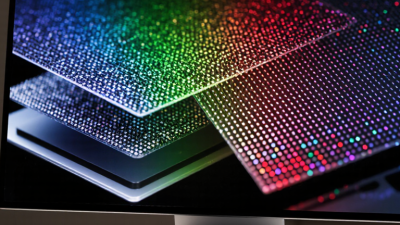
Panel type changes the image in practical ways. IPS panels usually provide stable viewing angles and consistent colors. VA panels often deliver deeper blacks, but dark scenes can show smearing. OLED panels offer excellent contrast and rapid pixel response, although static interfaces may require care. Brightness also needs context. VESA’s DisplayHDR specifications begin at 400 nits and extend to 1000 nits or more. Higher brightness helps highlights, but it cannot fix poor contrast or inaccurate color.
Check measured results, not only advertised numbers. The Display Specifications and Market Outlook reports from Omdia track continuing growth in high-refresh and premium display segments, yet refresh rate alone does not improve every image. A 165 Hz screen feels smoother during motion. It may look ordinary during office work. I once chose sharper resolution over higher refresh rate and regretted it during fast games. My preference changed after measuring viewing distance. Personal use still matters. Calibration can expose uneven brightness, and many panels are not perfect.
How to Choose the Best Computer Screen?
Compare resolution, panel types, and image quality using established display standards and practical viewing factors.
Understanding the Comparison
Higher resolutions contain more pixels, which can produce sharper text and finer image detail when screen size and viewing distance remain the same. Pixel counts are calculated from each standard's horizontal and vertical resolution.
- TN: Fast response times and lower cost, but usually weaker viewing angles and color performance.
- IPS: Consistent colors and wide viewing angles, making it suitable for design, photography, and general use.
- VA: Higher native contrast than most IPS displays, with strong blacks and good performance for movies and games.
- OLED: Self-emissive pixels provide very deep blacks and excellent contrast, although long-term image retention can be a consideration.
Resolution is only one part of image quality. Also consider pixel density, contrast, brightness, color accuracy, refresh rate, response time, and your normal viewing distance.
Evaluate Refresh Rate, Response Time, and Connectivity
A good computer screen should match your daily work, games, and viewing habits. Refresh rate affects how smoothly motion appears. A 60Hz screen refreshes images 60 times per second. Higher rates can make scrolling, camera movement, and fast games feel more fluid. However, the benefit depends on your computer producing enough frames. Paying for a higher rate may bring little improvement with weak hardware.
Response time measures how quickly pixels change color. Lower values can reduce ghosting behind moving objects. Look for independent testing, because advertised figures may use ideal conditions. I once trusted a specification sheet and noticed blurry edges during dark scenes. Numbers alone misled me. Check reviews showing motion tests, not only laboratory claims. For office work, response time matters less than stable brightness and comfortable text.
Connectivity also deserves practical attention. Confirm that the screen supports the inputs your computer provides. A modern digital connection can carry high resolution and refresh rates, but cables and ports may limit performance. Consider audio output, device charging, and easy switching between computers. Test the arrangement before mounting the screen. A short cable can create surprising desk problems. My own setup looked tidy until the power cord barely reached. Leave room for future upgrades, but avoid paying for ports you will never use.
Check Ergonomics, Compatibility, and Overall Value
How to Choose the Best Computer Screen?
Check Ergonomics, Compatibility, and Overall Value
A screen should fit your body, desk, and daily tasks. I measure viewing distance before comparing resolution or refresh rates. At about an arm’s length, text should remain sharp without leaning forward. The top edge should sit near eye level. Your neck will notice poor placement quickly. A height-adjustable stand helps, but a monitor arm can save desk space. I also check glare beside a window, not only in a showroom. Matte surfaces reduce reflections, although they may look slightly less vivid.
Compatibility deserves a practical check. Confirm that the computer supports the screen’s input type, resolution, and refresh rate. An adapter may reduce features or create cable clutter. Check whether the screen works well with your operating system’s scaling settings. Small text can become tiring when scaling behaves poorly. For laptops, verify power delivery if one cable matters. Test ports, speakers, and webcam functions before changing your entire setup. Technical manuals are usually more reliable than short product reviews.
Overall value is more than the lowest price. Consider warranty length, dead-pixel terms, energy use, stand quality, and repair options. A cheaper screen can cost more when its stand wobbles or replacement cables are unusual. I once ignored height adjustment and regretted it after several long editing sessions. My checklist is not perfect. Room lighting and personal vision still change the result. Borrowing a screen for one afternoon may reveal more than polished specifications.