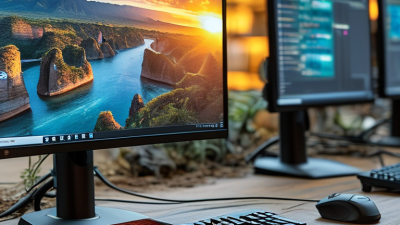
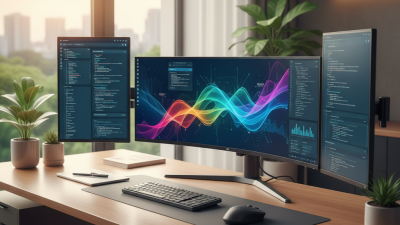
A screen monitor is more than a glass panel showing images. It is a coordinated system of pixels, backlighting, electronics, software, and human perception. Each frame begins as digital image data from a computer, camera, or game console. The monitor then converts that data into electrical signals. Tiny liquid-crystal cells or self-emitting OLED pixels change their light levels. Millions of these changes create the sharp picture viewed on the desk.
The process becomes easier to understand through everyday details. A 60 Hz screen monitor refreshes the image 60 times per second. Higher refresh rates can make a moving cursor feel smoother, especially during gaming or video editing. Response time affects how quickly pixels change, while resolution determines how much visual detail fits inside the display. Brightness, contrast, color accuracy, and viewing angle also influence practical performance. A product may advertise impressive numbers, but specifications alone do not guarantee a comfortable experience. Real rooms are messier.
Industry data confirms why this technology matters. IDC’s Worldwide Quarterly Monitor Tracker follows global monitor shipments and product demand across business and consumer markets. Omdia’s Display long-term demand research also tracks panel technologies, including LCD and OLED development. These reports show a market shaped by remote work, content creation, gaming, and replacement cycles. However, market growth does not automatically mean better usability. A brighter screen can cause discomfort without proper calibration. A fast panel can still display poor colors. This guide explains how a screen monitor works, what its core specifications mean, and where common marketing claims deserve careful examination. The technology is precise. The buying decision is not always.
What Is a Screen Monitor and How Does It Work?
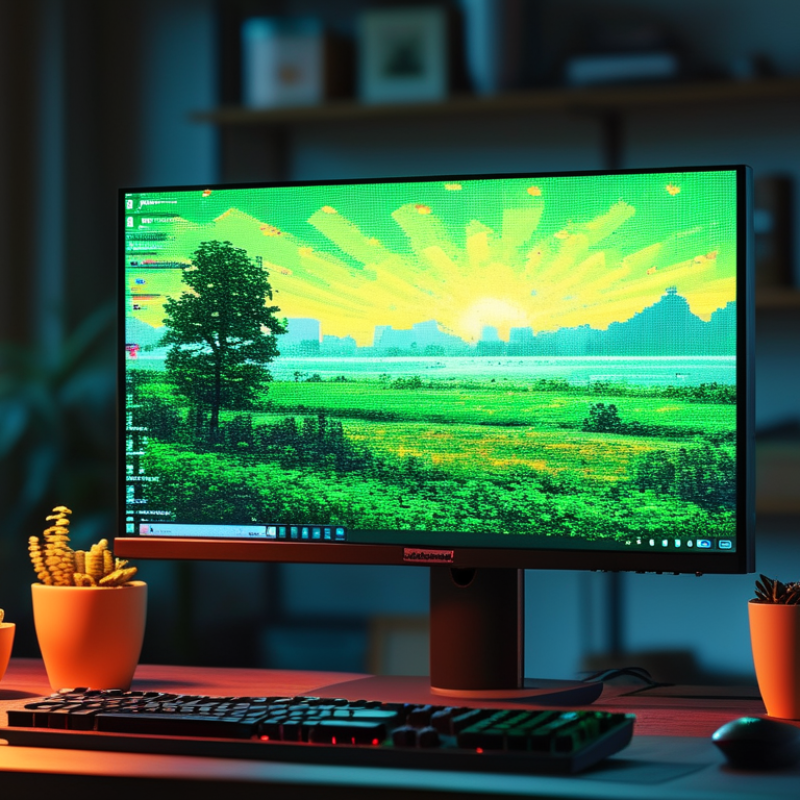
A screen monitor is an electronic display that shows visual information from a computer or another connected device. Its main purpose is clear communication. It turns digital signals into text, images, video, and movement that people can see.
The process begins when a device sends image data through a cable or wireless connection. The monitor interprets that data and controls millions of tiny pixels. Each pixel combines different levels of red, green, and blue light. Together, they create the picture on the screen. The refresh rate controls how often the image updates. A higher rate can make motion appear smoother, especially during video playback or interactive work.
A monitor also supports practical tasks, such as reading documents, editing images, checking data, and viewing security information. Screen size, resolution, brightness, and color accuracy affect comfort and performance. In daily use, poor brightness may cause eye strain, while low resolution can make small text look blurred. Small details matter.
It is not always better.
A brighter screen can look impressive in a store but feel harsh in a dim room. I have also found that users often focus on size and overlook viewing distance. A reliable choice depends on the task, lighting, connection type, and the user’s own comfort. Even accurate specifications cannot replace careful adjustment and real-world testing.
| Dimension | Definition or Typical Data | How It Works | Practical Purpose |
|---|---|---|---|
| Basic Definition | An electronic output device that displays visual information generated by a computer or another video source. | The monitor receives a video signal and converts it into visible images using pixels arranged in a grid. | Allows users to view text, graphics, video, applications, and interactive interfaces. |
| Display Technology | Common technologies include LCD with LED backlighting, OLED, and electronic-paper displays. | LCD panels control liquid-crystal cells in front of a backlight, while OLED panels produce light directly from individual pixels. | Influences brightness, contrast, viewing angles, response time, power consumption, and image quality. |
| Screen Size | Measured diagonally from one corner of the visible display area to the opposite corner; common desktop sizes range from approximately 22 to 32 inches. | The physical display area determines how much content can be shown at one time. | Larger screens can improve multitasking and viewing comfort, provided the resolution and viewing distance are appropriate. |
| Resolution | The number of horizontal and vertical pixels, such as 1920 × 1080, 2560 × 1440, or 3840 × 2160. | Each pixel contributes color and brightness information to form the complete image. | Higher resolutions generally provide sharper text and more detailed images, especially on larger screens. |
| Pixel Density | Pixels per inch (PPI), calculated from screen resolution and physical size. | A greater number of pixels packed into each inch creates finer image detail. | Helps determine perceived sharpness and is particularly important for text, photography, and design work. |
| Refresh Rate | The number of times the display updates the image each second, measured in hertz (Hz); common values include 60 Hz, 75 Hz, 120 Hz, and 144 Hz. | The monitor repeatedly receives and displays new frames from the video source. | Higher refresh rates can make motion appear smoother and reduce visible blur when supported by the computer and application. |
| Response Time | The time required for a pixel to change from one color or brightness level to another, usually measured in milliseconds (ms). | Pixel control circuits adjust the liquid crystals or emissive elements to represent the next image state. | Shorter response times can reduce ghosting during fast-moving scenes, although measurement methods vary. |
| Brightness | The amount of light produced by the display, commonly measured in candelas per square meter (cd/m²), also called nits. | Backlight or pixel output is adjusted to increase or decrease the visible luminance. | Determines readability in different lighting conditions and affects the appearance of highlights in images and video. |
| Contrast Ratio | The ratio between the brightest white and darkest black a display can produce. | The panel and backlight regulate how much light passes through or is emitted by each pixel. | Higher contrast can produce deeper blacks and better separation between light and dark areas. |
| Color Depth | The number of colors a monitor can represent; 8-bit color provides 256 levels per channel, while 10-bit color provides 1,024 levels per channel. | Digital color values are assigned to the red, green, and blue components of each pixel. | Greater color depth can produce smoother gradients and reduce visible banding in suitable content. |
| Color Gamut | The range of colors a display can reproduce, often described using standardized color spaces. | Panel materials, backlighting, and internal processing determine the available color range. | Important for photography, video editing, illustration, and any work requiring predictable color reproduction. |
| Viewing Angle | The angle from which the image remains acceptably accurate in brightness, contrast, and color. | Panel structure and pixel alignment affect how light and color change when viewed from the side. | Wide viewing angles are useful for collaboration, presentations, and multi-person viewing. |
| Video Inputs | Typical digital inputs include HDMI, DisplayPort, and USB-C; older systems may use analog VGA. | Inputs receive image data, timing information, and sometimes audio or power through a compatible cable. | Determines which computers, media devices, and signal formats can connect to the monitor. |
| Adaptive Synchronization | A feature that adjusts the monitor's refresh timing to match the frame output of a compatible graphics processor. | The display varies its refresh cycle instead of updating at a fixed interval. | Can reduce screen tearing and stuttering during variable-frame-rate content. |
| Ergonomic Adjustments | Common adjustments include tilt, height, swivel, pivot, and wall or arm mounting support. | The stand or mounting system changes the position and orientation of the display. | Helps users maintain a comfortable posture and position the screen at an appropriate height and distance. |
| Energy Consumption | Power use varies with screen size, brightness, display technology, refresh rate, and enabled features. | Power-management circuits can reduce or turn off display activity when the monitor is idle. | Lower energy use can reduce operating costs and support more efficient workstation design. |