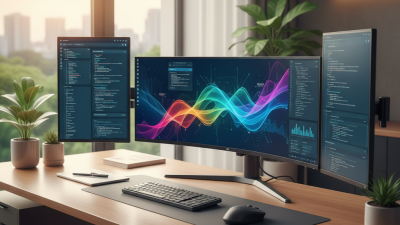
A pc monitor is more than a bright rectangle beside a keyboard. It is the surface where work, games, photographs, and daily decisions become visible. An experienced user notices small differences quickly: blurry text, uneven backlighting, awkward ports, or a stand that refuses to adjust. These details can affect comfort after several hours. I once chose a display for its impressive color and ignored its poor height range. My neck noticed the mistake before I did. A better choice begins with real use, not attractive packaging.
This guide explains the main specifications behind a practical monitor purchase. Screen size, resolution, refresh rate, response time, panel type, brightness, and contrast each solve different problems. A 27-inch 1440p display can make office text feel spacious, while a 24-inch 1080p model may suit a smaller desk. Fast gaming benefits from a high refresh rate, but it cannot repair weak graphics hardware. Color-sensitive work also needs measured accuracy, not only a “wide color” label. Manufacturer claims help, although independent testing can reveal uneven brightness or distracting ghosting.
Budget matters, but so does the cost of compromise. Consider desk depth, viewing distance, computer ports, warranty coverage, and daily eye comfort. USB-C may simplify a laptop setup, while an adjustable stand can prevent hours of poor posture. No specification wins every time. Personal needs still decide the result. The right monitor should feel clear, stable, and comfortable before it feels exciting. That judgment takes a little patience.
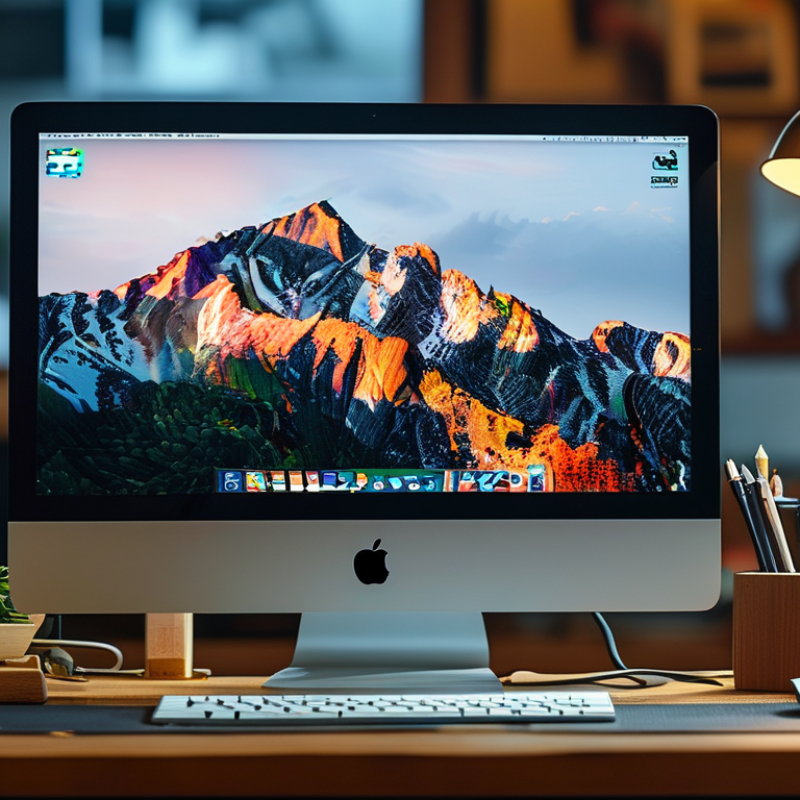
A PC monitor is the computer system’s visual output device. It receives signals from the graphics processor and turns data into text, images, video, and interfaces. The computer creates information, but the monitor makes that information usable. That distinction matters.
IDC’s Worldwide Quarterly PC Monitor Tracker estimated that more than 120 million PC monitors shipped globally in 2023. This volume reflects a practical need, not just a preference for larger screens. A monitor affects reading comfort, visual accuracy, workspace efficiency, and response speed. Office work often benefits from sharp text and adjustable height. Creative work requires consistent color and wide viewing angles. Fast games depend more on refresh rate and motion handling.
Choosing one begins with the computer’s role. A 24-inch screen can suit a compact desk, while a 27-inch panel offers more working space. Resolution should match viewing distance and software demands. Higher resolution is helpful, but it can increase graphics workload. Refresh rate matters during motion, although extreme numbers may offer little value for ordinary documents. Pixels are only part.
Check connection standards, stand adjustment, brightness, and glare control. VESA’s display standards help compare signal and performance features, but specifications can still hide weaknesses. I once treated maximum brightness as a quality guarantee. It was not. Measure your desk, test text at normal distance, and consider your eyes after two quiet hours. A technically impressive monitor may still be uncomfortable in daily use.
What Is a PC Monitor and How Do You Choose One?
A PC monitor is the screen that turns computer data into visible images, text, and motion. Choosing one starts with your daily use, not its appearance. Flat monitors work well for office tasks and limited desks. Curved models can feel immersive, but their benefits depend on viewing distance and screen size. I once focused too much on screen size and ignored desk depth. That was inconvenient.
Panel technology strongly affects the image. IPS panels usually provide accurate colors and wide viewing angles. They suit photo editing, design, and general work. VA panels often produce deeper blacks, which helps in dark games and movies. However, some VA screens show dark smearing during fast movement. TN panels can respond quickly, but their colors and viewing angles are less impressive. OLED panels deliver excellent contrast and rapid response. They may require careful settings during long, static sessions.
Resolution describes the number of pixels. Full HD is practical for smaller screens and modest computers. QHD offers sharper text and more workspace without demanding as much power as higher resolutions. Ultra-high resolution looks detailed, but small interface elements may require scaling. Refresh rate measures how many times the screen updates each second. Sixty hertz is sufficient for documents and basic video. Higher rates make scrolling and gameplay feel smoother. Your computer must produce enough frames to use them. A powerful monitor cannot fix weak graphics performance. Check connection support, viewing distance, and your graphics settings before deciding.
| Monitor Category | Typical Panel Technology | Common Resolution | Typical Refresh Rate | Primary Strengths | Potential Limitations | Best Suited For |
|---|---|---|---|---|---|---|
| General-Purpose Monitor | IPS, VA, or modern TN | 1920 × 1080 or 2560 × 1440 | 60–165 Hz | Balanced image quality, responsiveness, connectivity, and price | May not excel in professional color work, extreme gaming, or high pixel density | Home, office, study, and mixed use |
| Gaming Monitor | IPS, VA, OLED, or TN | 1920 × 1080, 2560 × 1440, or 3840 × 2160 | 120–360 Hz or higher | Low response times, high refresh rates, adaptive synchronization, and reduced motion blur | Higher refresh rates require stronger graphics hardware; some models prioritize speed over color or contrast | Fast-paced games and competitive play |
| Color-Critical Monitor | IPS or OLED | 2560 × 1440 or 3840 × 2160 | 60–144 Hz | Wide color gamut, strong viewing angles, and support for color calibration | Higher cost; OLED models may require burn-in management for static content | Photography, video editing, design, and publishing |
| High-Resolution Monitor | IPS, VA, or OLED | 3840 × 2160 or higher | 60–165 Hz | Sharper text, detailed images, and more workspace for high-resolution content | Needs more graphics performance; operating-system scaling may be necessary | Detailed creative work, productivity, and media |
| Ultrawide Monitor | IPS, VA, or OLED | 2560 × 1080, 3440 × 1440, or 5120 × 1440 | 60–240 Hz | Extra horizontal workspace without a central bezel between screens | Requires desk space; some games and videos may not fully support the aspect ratio | Multitasking, simulation games, and timeline editing |
| Portable Monitor | IPS or OLED | 1920 × 1080 or 2560 × 1600 | 60–144 Hz | Lightweight, compact, and convenient for travel or a second screen | Usually smaller, less bright, and less adjustable than a full-size desktop monitor | Mobile work, travel, and temporary setups |
| Professional Large-Format Monitor | IPS, VA, or OLED | 3840 × 2160 or higher | 60–120 Hz | Large viewing area, high detail, and strong multitasking capability | Requires substantial desk space and may have greater power consumption | Studio work, data analysis, and large-scale productivity |
| Panel Type | Contrast Characteristics | Viewing Angles | Motion Performance | Color Behavior | Important Considerations |
|---|---|---|---|---|---|
| IPS | Usually moderate contrast with consistent brightness | Generally wide and stable | Good to very good, depending on the model | Typically strong color consistency and suitable for many creative tasks | Dark scenes may appear gray compared with VA or OLED; backlight glow can vary |
| VA | High native contrast and deeper blacks than most IPS panels | Good, but color and contrast can shift more off-center | Good overall; dark transitions may be slower on some models | Can provide rich-looking colors, though uniformity varies | Well suited to movies and dark-room gaming; check for smearing in fast dark scenes |
| TN | Usually lower contrast than VA and OLED | Narrower than IPS and VA | Very fast response is possible | Usually less consistent and less visually rich than newer IPS, VA, or OLED panels | Chosen mainly when motion speed and low cost matter more than image quality |
| OLED | Per-pixel lighting enables near-perfect black levels and extremely high contrast | Usually very wide | Extremely fast pixel response with clear motion | Excellent color and HDR potential, depending on implementation | Static images can create burn-in risk over time; brightness and power behavior vary |
| Specification | What It Means | Advantages | Trade-Offs | Practical Selection Advice |
|---|---|---|---|---|
| 1920 × 1080 | Full HD resolution with approximately 2.1 million pixels | Lower graphics demand and broad compatibility | Less workspace and lower image sharpness on larger screens | Useful for smaller displays, basic productivity, and high-frame-rate gaming |
| 2560 × 1440 | Quad HD resolution with approximately 3.7 million pixels | Sharper than Full HD while remaining easier to drive than 4K | Needs more graphics performance than Full HD | A strong balance for medium-to-large displays and modern gaming systems |
| 3840 × 2160 | 4K UHD resolution with approximately 8.3 million pixels | High detail, sharp text, and extensive workspace | Higher graphics demand; interface scaling may be required | Best when image detail and productivity space are priorities |
| 60 Hz | The display can refresh the image up to 60 times per second | Suitable for office work, films, and most everyday tasks | Motion appears less fluid than on high-refresh displays | Choose it for productivity when smooth gaming is not important |
| 120–165 Hz | The display refreshes substantially more often than a 60 Hz model | Smoother scrolling, animation, and gameplay | Requires enough system performance to produce higher frame rates | A versatile range for gaming and responsive everyday use |
| 240 Hz or higher | Very high refresh capability for reduced display latency and motion blur | Excellent fluidity in supported high-frame-rate content | Benefits become less noticeable for noncompetitive use; hardware demands increase | Consider it mainly for competitive gaming and specialized motion-sensitive work |
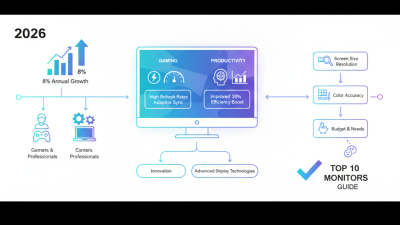
Selection rule: Choose the monitor based on the intended workload, viewing distance, desk space, computer performance, and connectivity needs. Resolution determines image detail, refresh rate determines motion fluidity, and panel technology influences contrast, viewing angles, color consistency, and response behavior.
A PC monitor is the surface where work becomes visible, so its value depends on the task. For office work, prioritize readable text, height adjustment, and a matte panel. The 2024 Steam Hardware and Software Survey still lists 1920×1080 as the most common gaming resolution. That makes a sharp 24-inch or 27-inch display a practical choice for documents, coding, and casual play. More pixels are not always better.
Gaming demands different priorities. A high refresh rate can make camera movement feel smoother, while low response time reduces visible trailing. Competitive players may prefer 240Hz or higher, but most users will notice the difference only when the graphics card produces enough frames. According to the 2024 Global PC Monitor Tracker from IDC, monitor demand continues to reflect hybrid work and entertainment needs. I would not buy speed alone. A dim panel can make long sessions unpleasant.
Creative work needs trustworthy color, stable brightness, and useful screen space. Look for a measured sRGB mode, factory calibration evidence, and wide viewing angles. VESA’s DisplayHDR specifications define brightness classes beginning at 400 cd/m², but a higher label does not guarantee accurate images. Check independent measurements. For photo editing, a 27-inch 4K monitor offers cleaner detail; for video timelines, a larger ultrawide layout may save scrolling. My own mistake was ignoring ergonomics. A beautiful display placed too low still creates a poor working experience.
A PC monitor displays computer images, but its value depends on daily comfort. A larger screen is not automatically better. A 24-inch model suits compact desks and focused tasks. A 27-inch screen gives spreadsheets and creative work more breathing room. For sharper text, match the resolution to the size. A 27-inch display with 1440p resolution often looks clearer than the same size at 1080p. Bigger is not always better. I once chose a wide screen for multitasking, then noticed frequent head movement during long writing sessions.
Connectivity should match your devices and future plans. Check for HDMI, DisplayPort, or USB-C connections. USB-C can carry video, data, and power through one cable, but performance varies by port. Confirm the supported resolution and refresh rate before buying. A built-in hub can reduce desk clutter. It can also create another point of failure. Keep one spare cable nearby.
Ergonomics affects comfort more than many specifications. Look for height adjustment, tilt, swivel, and portrait rotation. The top edge should sit near eye level, with the screen about an arm’s length away. A stable stand matters on a shallow desk. Visual comfort also depends on brightness, room lighting, and text size. A bright screen in a dark room can feel harsh. Choose a matte surface and a tested low-flicker setting when possible. Take breaks. My own setup still needs adjustment after busy weeks, especially when posture slowly worsens.
A PC monitor is the screen that displays your computer’s images, text, and video. Choosing one should begin with your desk, graphics hardware, and budget, not impressive specifications. The Steam Hardware and Software Survey for February 2025 showed 1920×1080 remained the most common resolution, used by about 55% of surveyed systems. That makes a 24-inch Full HD monitor a sensible value choice for office work and moderate gaming. It also leaves money for a better chair, storage, or a stronger graphics card.
Measure your viewing distance first. A 27-inch 1440p display usually provides sharper text and more workspace, but it costs more and demands stronger graphics performance. For fast games, a refresh rate around 120Hz to 180Hz can make camera movement feel smoother. For writing, coding, or design, prioritize adjustable height, a matte surface, and clear text at normal brightness. VESA’s DisplayHDR standards help identify tested brightness and contrast levels, although an HDR label alone does not guarantee a convincing picture. Check the ports, too. A missing compatible video connection can create an unnecessary adapter expense. I once chose refresh rate over stand quality and regretted the daily neck strain. That was poor prioritization. Leave room in the budget for calibration, lighting, and return shipping, because specifications rarely reveal every weakness.