What Is a Computer Screen and How Does It Work?
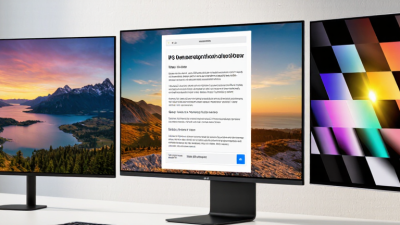
A computer screen is the part of a digital device that turns data into visible images. It may look like a simple glass panel, yet millions of tiny pixels work behind its surface. Each pixel changes color and brightness to create text, photographs, videos, and moving interfaces.
The process begins when a computer’s processor and graphics system send image instructions to the display. In an LCD screen, liquid crystals control light from a backlight. In an OLED screen, each pixel produces its own light. Red, green, and blue subpixels combine at different intensities. This creates the wide range of colors that users see. Refresh rate controls how often the image updates, while resolution describes how many pixels form the picture.
Small details matter. A high-resolution screen can make letters look smoother, like ink on clean paper. A weak viewing angle may make colors fade when you move sideways. Brightness, contrast, response time, and color accuracy also affect everyday use. Technical specifications help, but they do not tell the whole story. Personal eyesight, room lighting, and viewing distance can change the experience.
Understanding these parts makes screen choices less confusing. It also reveals a limitation: no display is perfect. Some panels show deeper blacks, while others provide better brightness or lower cost. This guide explains how a computer screen works, compares major display technologies, and shows which features matter in real situations.
What a Computer Screen Is and the Role It Plays
A computer screen is an electronic surface that turns digital instructions into visible images. Its pixels control color and brightness, while a display controller sends timing signals to each pixel. Many screens use liquid crystals and a backlight. Others produce light directly through organic materials. The result is more than a picture. It is the main conversation point between a person and a computer.
This role becomes clearer in daily work. Text appears as sharp lines, charts reveal patterns, and small visual cues confirm that software received an action. The International Telecommunication Union reported 5.4 billion internet users in 2023. Screens therefore support learning, employment, healthcare access, and social participation on a massive scale. They also shape how quickly people notice errors. A delayed image or poor contrast can turn a simple task into repeated guessing.
Display quality involves more than resolution. Brightness, refresh rate, color accuracy, viewing angle, and flicker can affect comfort and performance. The World Health Organization’s World Report on Vision identifies at least 2.2 billion people with near or distance vision impairment. Clear interfaces matter. Accessibility settings matter too. Yet screen research often treats users as identical, which feels incomplete. A bright screen may help one worker and strain another. Room lighting, viewing distance, font size, and rest periods change the experience. The screen works technically, but its human role depends on the entire environment.
How Digital Signals Become Visible Images
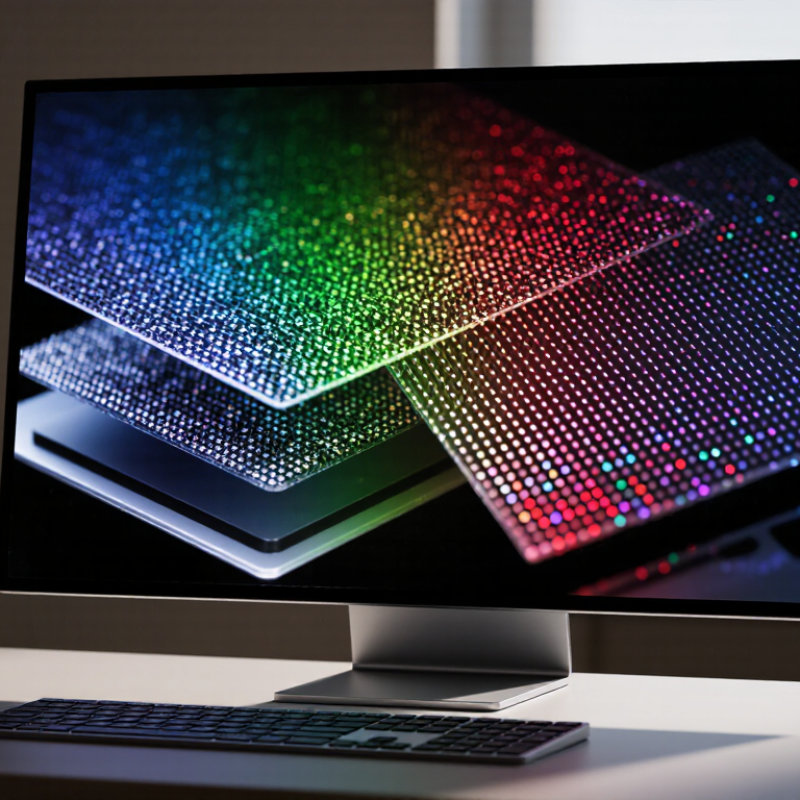
A computer screen turns digital signals into visible images through millions of tiny pixels. Each pixel contains smaller red, green, and blue elements. Their brightness levels combine to create different colors. A graphics processor sends numerical instructions to the screen. These instructions describe brightness, color, and position.
Inside the display, electronic circuits update pixels many times each second. A liquid crystal layer controls light passing through it. Other screens create light directly through microscopic elements. The result appears continuous to our eyes, although it is built from separate points. I once thought an image appeared instantly. In reality, signals travel, pixels respond, and the process repeats constantly. Small delays can still occur. They may come from the computer, the cable, or the display itself.
Tips: Use the screen’s recommended resolution for sharper details. Keep brightness comfortable, especially in dim rooms. If text looks blurry, check scaling and refresh settings. These adjustments do not fix every problem. Sometimes the panel’s viewing angle or pixel structure is responsible.
What Is a Computer Screen and How Does It Work?
Digital images are built from pixels. In an 8-bit-per-channel RGB system, each red, green, and blue channel uses a value from 0 to 255. Equal channel values create neutral gray levels, which a display converts into different amounts of light.
This chart shows a six-step grayscale ramp. A value of 0 represents no channel intensity, while 255 represents the maximum encoded intensity. The screen processes these digital values for millions of pixels to produce visible images.
How Pixels, Colors, and Brightness Create a Display
What Is a Computer Screen and How Does It Work?
A computer screen creates images from thousands or millions of tiny pixels. Each pixel contains smaller red, green, and blue light elements. These elements change intensity to produce different colors. When all three shine strongly, the pixel appears white. When they remain dark, it appears black. A single blue icon may look simple, but its edges often use partially lit pixels. This creates smoother shapes.
Brightness and Contrast
Brightness describes how much light the display produces. A brighter screen can make text easier to read near a sunny window. However, excessive brightness may cause eye discomfort in a dark room. Many screens adjust brightness by controlling a backlight, while some technologies control each pixel’s light directly. Contrast depends on the difference between the brightest white and darkest black. Strong contrast makes shadows and small details easier to distinguish.
Color Accuracy and Viewing Experience
Color accuracy requires more than vivid images. The screen must reproduce colors consistently, and its software must interpret image data correctly. Calibration tools can measure white balance, brightness, and color differences. I have found that a display can look impressive at first, yet show unnatural skin tones after prolonged viewing. That is a useful warning. Human vision also adapts to surrounding light, so a screen may appear warmer or cooler during the day. Refresh rate affects motion, while resolution affects fine detail. More pixels do not always mean a better experience. Poor calibration, reflections, or uncomfortable brightness can matter just as much.
Common Screen Technologies and Their Differences
What Is a Computer Screen and How Does It Work?
Common Screen Technologies and Their Differences
A computer screen turns digital signals into visible images through millions of tiny pixels. Each pixel controls color and brightness. Liquid crystal display, or LCD, uses a backlight behind these pixels. Many modern LCD screens use light-emitting diodes for that backlight. They are usually bright, affordable, and practical for office work. However, dark scenes may look gray because the backlight stays partly active.
OLED screens work differently. Each pixel produces its own light, so black pixels can switch off completely. This creates strong contrast and vivid shadows. OLED panels can also respond quickly to movement. Their weaknesses include possible image retention and uneven aging over long periods. Mini-LED remains an LCD technology, but it uses many smaller backlight zones. These zones improve contrast without changing the basic pixel structure. The result can be impressive, although bright objects may create small halos around dark areas. No display wins every test.
Tips: Match the screen to your routine. Choose LCD for balanced daily use and clear productivity. Consider OLED for deep blacks, fast motion, and creative viewing. Mini-LED suits bright rooms and high-contrast content. E-ink screens are comfortable for static text and use little power, but they refresh slowly. Check brightness, viewing angle, refresh rate, and color accuracy in person when possible. Personal comfort matters. My eyes do not always agree with laboratory numbers.