A computer monitor can fail without warning, turning a productive workspace into a dark rectangle. Sometimes the cause is simple: a loose power cable, a sleeping computer, or the wrong input source. Other failures are less obvious. A damaged HDMI cable, outdated graphics driver, overheating graphics card, or failing backlight may create similar symptoms.
Display expert Dr. Raymond M. Soneira, president of DisplayMate Technologies, has stated, “The display is the most important component in a computer.” That perspective matters because a monitor is not merely an accessory. It is the main point where users see evidence of system activity. A faint power light, a “No Signal” message, or thin colored lines across the screen can reveal different problems.
This guide explains why a computer monitor may not be working and how to test each likely cause safely. You will learn how to check power delivery, input settings, cables, computer output, and display hardware. Start with the easy checks. They prevent unnecessary repairs.
Look closely.
Try another outlet. Test another cable. Shine a phone light across a black screen; a faint image may indicate backlight failure. Still, troubleshooting is not perfectly predictable. A monitor that worked yesterday can fail because of heat, age, or a hidden connection fault. I have seen users replace a monitor when the real problem was a disconnected docking station. That mistake is understandable, but it shows why careful testing matters. By following a logical sequence, you can identify the fault more reliably and decide whether adjustment, repair, or replacement makes sense.
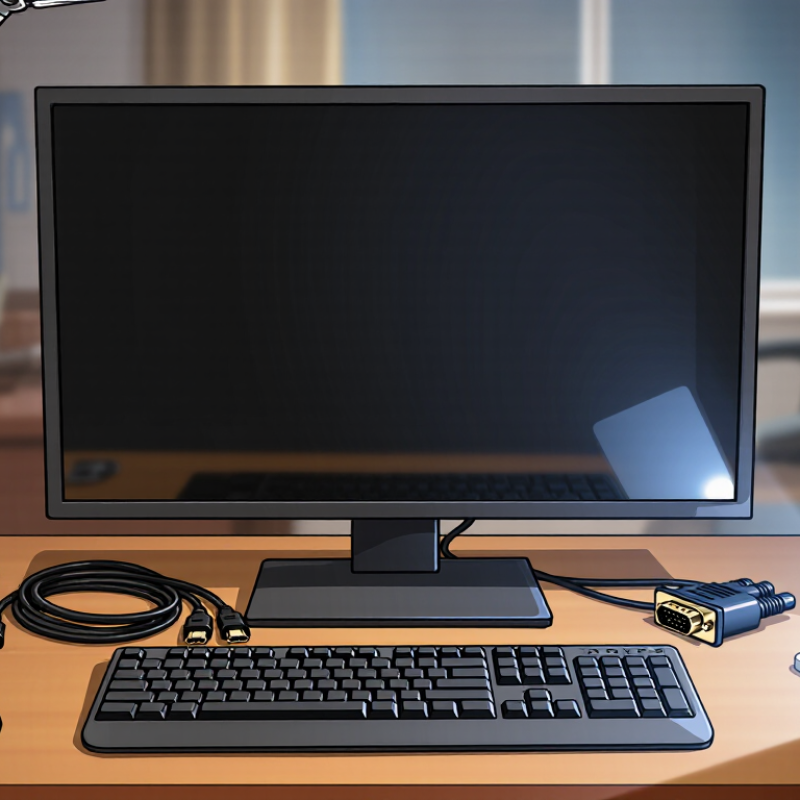
A dark monitor does not always mean the screen has failed. Power problems are more common than many people expect. Check whether the power light appears near the monitor’s lower edge. If it stays dark, reseat the power cable and test another wall outlet. Avoid loose extension connections. I once blamed a dead display before finding a half-inserted plug behind a desk.
The computer may also be running, while the monitor receives no video signal. Check the cable at both ends for damage, bent pins, or a weak connection. Then confirm that the selected input matches the connected port. A monitor can display “No Signal” when the cable works correctly but the computer’s output is misconfigured. Try restarting the computer after reconnecting the cable. Small changes matter.
Sometimes the issue involves brightness, sleep settings, or a failed internal component. Shine a flashlight at the screen from an angle. A faint image may indicate a backlight problem rather than a completely dead panel. Listen for unusual clicking or buzzing, but do not open the monitor yourself. Internal capacitors can retain dangerous electrical charge. My early troubleshooting often stopped at checking cables, which was too narrow. Testing the monitor with another computer provides stronger evidence. If it remains blank across different cables and devices, professional inspection becomes reasonable. Keep notes of what changed, even when the result seems confusing.

A dark monitor often has a simple cause: no power or a loose cable. I have found this during office troubleshooting, especially after desks were moved. Press the monitor’s power button and check for a small indicator light. No light usually means a power problem. Confirm the power cord fits firmly at both ends. Test another wall outlet, preferably one used by a working device. Do not rely on a power strip’s switch without checking it.
If the light appears but the screen stays black, inspect the video connection. Remove and reconnect the cable until it clicks or sits firmly. Check both the monitor and computer ports. Select the correct input source through the monitor’s control buttons. A wrong input can look like a failed display. The International Data Corporation’s Worldwide Quarterly PC Monitor Tracker reported a 5.1% global shipment decline in 2023. That market pressure may encourage longer device use, making basic connection checks more valuable.
Tips: Try one cable at a time. Disconnect adapters temporarily. Restart the computer after reconnecting everything. A second monitor can help identify the fault, but this test is imperfect. I once blamed a damaged screen when the computer had simply selected another display. Also inspect bent pins, frayed insulation, or unusual heat. Stop using damaged cables. If the monitor works briefly, record when it fails; that detail helps a qualified technician.
A blank monitor does not always mean the panel has failed. In many cases, the signal path is the real problem. Check the power light, then reseat both ends of the display cable. Look closely at the connectors. Bent pins, loose housings, and dust can interrupt a digital signal. Try another cable with the same connector type. Cable labels can also mislead; a cable may fit physically but lack the bandwidth your resolution requires.
Test the input source manually. Open the monitor’s input menu and select the connected port instead of waiting for automatic detection. Then connect the monitor to another working computer, or connect a different monitor to the original computer. This cross-test separates a faulty cable from a faulty output port. VESA’s DisplayPort 2.1 specification lists up to 80 Gbps through UHBR20, while HDMI 2.1 documentation lists up to 48 Gbps. Higher refresh rates and resolutions need suitable cable performance, not just a matching plug.
Lower the computer’s resolution and refresh rate if the screen appears briefly, flickers, or reports “No Signal.” That test is useful, but not conclusive. I have seen intermittent faults disappear for hours after a cable was moved, which makes diagnosis easy to misread. Check the cable again while the display is active. If the image changes when the connector moves, stop adjusting settings and replace the cable. Keep the working configuration recorded. Small details matter here.
| Observed Symptom | Likely Area to Check | Test Method | What the Result Means | Recommended Action |
|---|---|---|---|---|
| The monitor has no power light and shows no image. | Power connection, power switch, or outlet. | Confirm the power cable is fully inserted, turn on the monitor, and test the outlet with another working device. | If the outlet works but the monitor remains completely inactive, the monitor or its power cable may be faulty. | Reconnect the cable, try a known-good compatible power cable if available, and seek hardware service if there is still no power. |
| The power light is on, but the screen says “No Signal.” | Video cable, computer output, or selected input source. | Reseat the video cable at both ends, then use the monitor controls to select the input port that matches the connected cable. | A “No Signal” message usually means the monitor is working but is not receiving an active video signal. | Select the correct input and check that the cable is connected to an active video output on the computer. |
| The monitor displays its own menu, but not the computer desktop. | Computer signal path or incorrect input selection. | Open the monitor’s on-screen menu. Then verify the computer is powered on and the selected input matches the connected port. | A visible on-screen menu confirms that the display panel has power and can generate an image. | Focus troubleshooting on the computer, video cable, graphics output, and input source rather than the display panel. |
| The image appears briefly and then disappears. | Loose cable, unstable connection, or incorrect display setting. | Gently check both cable connectors, inspect for bent or damaged pins where applicable, and test with another compatible cable. | If another cable works reliably, the original cable or its connectors are likely defective. | Replace the damaged cable and make sure connectors are fully seated without excessive strain. |
| The screen is black, but the computer appears to be running. | Sleep mode, brightness, input source, or video output. | Move the mouse or press a keyboard key, adjust brightness, open the monitor menu, and confirm the correct input is selected. | If the menu appears, the monitor is receiving power; the issue may be related to the computer signal or display settings. | Wake the computer, select the active input, and restart the computer if the video signal does not return. |
| The monitor works with one computer but not another. | The second computer’s output, settings, or adapter. | Use the same monitor, cable, and input with both computers, changing only one variable at a time. | If the monitor and cable work with one computer, the problem is more likely in the other computer’s output or configuration. | Check the second computer’s active display output, adapter compatibility, graphics driver, and display settings. |
| The monitor works through one port but not another. | A specific video port, cable type, or input setting. | Test the computer and monitor with another compatible port while selecting the corresponding input source. | A working alternate connection indicates that the original port, cable, or port configuration may be the cause. | Use the working port temporarily and inspect the unused port for damage or configuration limitations. |
| A laptop shows an image on its built-in screen but not on the external monitor. | External display mode, adapter, or laptop video output. | Use the operating system’s display settings to choose duplicate or extend mode, and test the adapter or cable separately if one is used. | The laptop is operating, but it may not be sending video to the external output. | Enable the external display, verify the connection type, and restart after changing the display configuration. |
| The image has flickering, colored lines, or intermittent distortion. | Cable damage, poor connection, refresh rate, or graphics hardware. | Reseat the cable, try a different compatible cable, and temporarily use a standard supported resolution and refresh rate. | If changing the cable resolves the issue, the original cable or connection was unreliable; if not, the output or display may need service. | Use a sound cable, avoid sharply bending it, and use supported display settings before investigating hardware faults. |
| The computer does not detect the external monitor. | Cable connection, adapter, input source, or computer output. | Reconnect the cable, select the correct input, restart both devices, and use the operating system’s display-detection function. | Failure to detect the display after basic checks points to a connection, adapter, output-port, or hardware compatibility issue. | Test without unnecessary adapters, try another compatible cable or port, and check the computer’s display hardware. |
When a monitor stays black, identify the failing layer before replacing parts. Start with simple evidence. Is the power light on? Does the screen show “No signal,” or remain completely dark? Check the power cable, video cable, and selected input. Reseat each connection with the computer turned off. A loose cable is common. I once spent an hour testing software before noticing a half-seated cable.
If another display works, the original monitor, cable, or input may be responsible. If both displays fail, inspect the computer. Listen for startup sounds, check keyboard response, and notice whether the fans run normally. A frozen system can look like a dead screen. Restart once, not repeatedly. Test the computer with a known-good cable and display. If there is no response, professional hardware service may be appropriate. Avoid opening components unless trained.
When the image appears briefly or only in basic mode, suspect graphics or software. Boot into recovery or safe mode, then remove a recent driver update or restore a stable display setting. Check system logs for graphics timeouts, crashes, or overheating records. A wrong resolution can create a blank screen after login. Reset it through recovery tools. Do not assume the newest driver is best; compatibility matters. My diagnosis was imperfect once: I blamed the graphics hardware, but a damaged update caused the failure. Document every test and change for a qualified technician.
Why Is My Computer Monitor Not Working?
A dark monitor does not always mean the screen has failed. Check the power cable, outlet, and power light first. Then reseat the video cable and select the correct input source. If another screen works with the same computer, the monitor becomes the main suspect. If neither screen works, the computer or cable may be responsible.
Repair makes sense when the monitor has a loose port, damaged cable, or minor power issue. A qualified technician can test voltage, ports, and internal components safely. Do not open the casing unless you have proper training. Internal capacitors may retain dangerous electrical charge. Replacement is often wiser when the panel has cracks, spreading black spots, flickering lines, or severe color distortion. Repair costs can also approach the price of a newer, more efficient display. I once blamed a monitor for a faulty graphics connection. The diagnosis was not neat.
Tips: Test a different outlet and cable. Shine a flashlight across a black screen. A faint image may indicate a failed backlight. Reduce brightness and check for heat, buzzing, or a burning smell. Stop using the monitor if it smells burnt. Record the model, symptoms, and recent changes before seeking service. This information helps a technician work faster and prevents unnecessary replacement.
Estimated service-life ranges can help determine whether a monitor is worth repairing or replacing. Backlight and power-related faults may be repairable, while a failed LCD panel is often less economical to replace.
The figures show commonly cited operating-life ranges for major monitor components, measured in hours of use. If the display is relatively new and the fault involves the cable, power supply, or backlight, professional repair may be reasonable. If the panel has severe damage or the monitor is near the end of its expected service life, replacement is usually the more practical option.