Top 10 Tips for Choosing the Best Touch Screen Monitor for PC
When it comes to enhancing your computing experience, a touch screen monitor for PC can be a game changer. These advanced displays offer a level of interactivity and convenience that traditional monitors simply cannot match. Whether you are a professional seeking greater productivity, a creative individual looking for precise control, or a casual user wanting a more engaging way to interact with your device, choosing the right touch screen monitor can greatly influence your overall satisfaction and efficiency.
In this guide, we will explore the top 10 tips for selecting the best touch screen monitor for PC tailored to your specific needs. With numerous options available in the market, understanding the essential features, specifications, and ergonomic considerations is critical. From screen size to responsiveness, and from resolution to mounting options, each factor plays a vital role in achieving the perfect blend of functionality and comfort. By the end of this article, you'll be equipped with the knowledge necessary to make an informed decision that elevates your PC experience.
Understanding Touch Screen Technology and Features
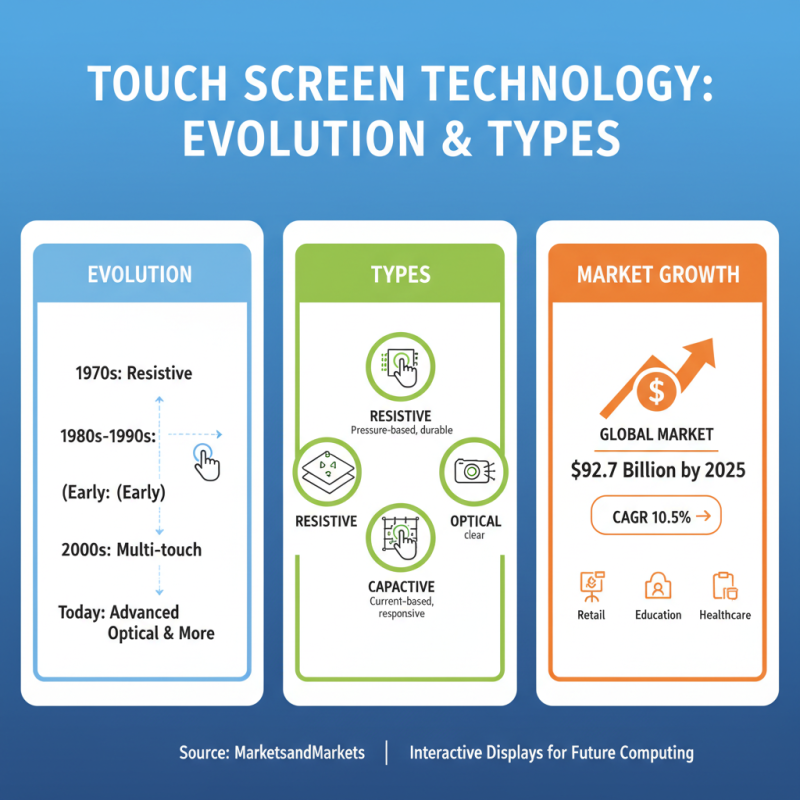
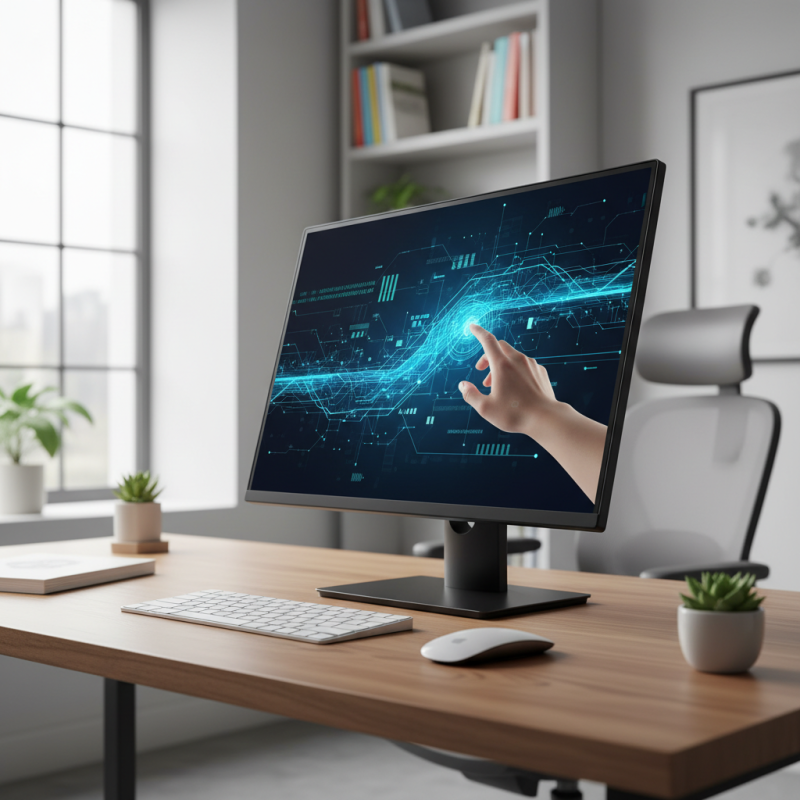
Touch screen technology has evolved significantly over the years, becoming an indispensable part of user interaction with various devices, including PC monitors. Understanding the basic types of touch screens, such as resistive, capacitive, and optical, is crucial when selecting a monitor for your needs. According to a report by MarketsandMarkets, the global touch screen market size is projected to reach $92.7 billion by 2025, growing at a CAGR of 10.5%. This growth indicates the increasing demand for interactive displays across industries like retail, education, and healthcare.
When selecting a touch screen monitor, consider the technology behind the display. Capacitive touch screens, known for their responsiveness and multi-touch capabilities, are popular in high-end applications where precision is paramount. These displays employ conductive materials to detect touch, offering smoother and more intuitive user experiences compared to resistive screens. A study by Grand View Research highlighted that capacitive touch technology is expected to hold a significant market share, driven by the rising adoption of smartphones and tablets that utilize similar technology. Additionally, features like screen resolution, durability, and glare resistance should be evaluated to optimize the visual experience and endurance of the monitor in various environments.
Evaluating Screen Size and Resolution for Your Needs
When selecting a touch screen monitor for your PC, understanding the importance of screen size and resolution is crucial for ensuring optimal performance tailored to your specific needs. A study by DisplayMate Technologies indicates that users tend to prefer monitors with larger screens, as they facilitate easier interaction and multitasking, especially when using touch features. For most applications, a screen size between 22 to 27 inches is generally considered ideal, offering enough real estate for user engagements without overwhelming the workspace. A larger display can enhance productivity and comfort, reducing strain during prolonged use.
Screen resolution, measured in pixels, directly affects the clarity and detail of the visuals produced. According to recent market analysis from IDC, at least 77% of users report that higher resolution monitors, such as those boasting 1440p or 4K capabilities, significantly improve their workflow efficiency. For tasks involving graphic design, video editing, or detailed data analysis, higher resolutions allow for sharper images and finer details, which are instrumental in delivering accurate results.
Conversely, for basic applications like web browsing or office tasks, while a Full HD resolution may suffice, investing in a 4K monitor could future-proof your setup as content quality continues to evolve. Therefore, understanding your specific use case and matching it with the appropriate screen size and resolution will not only enhance your user experience but also contribute to overall productivity.
Assessing Touch Responsiveness and Accuracy
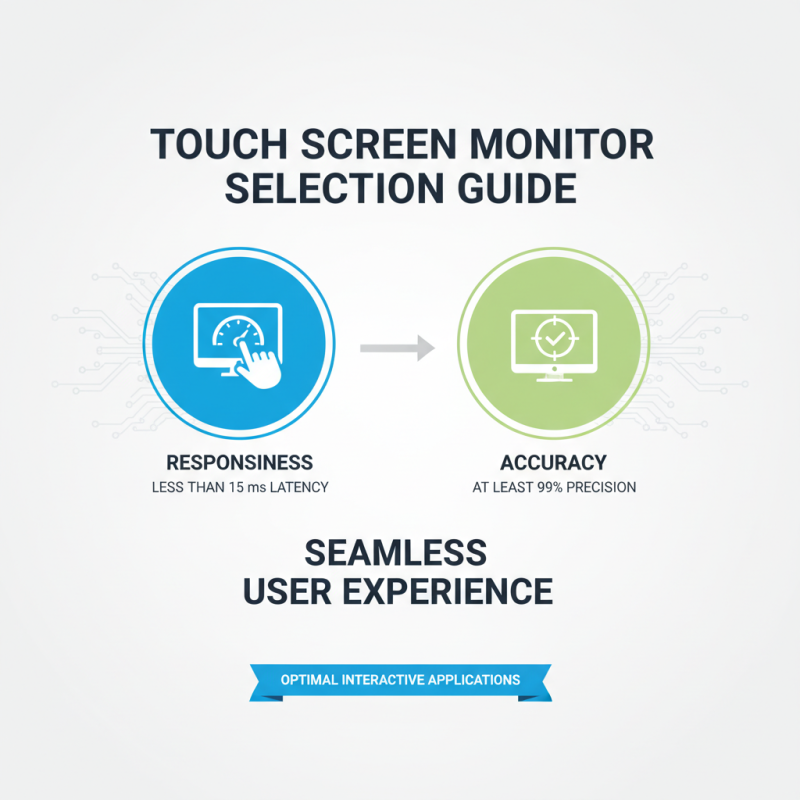
When selecting a touch screen monitor, assessing touch responsiveness and accuracy is crucial to ensure a seamless user experience. Research indicates that touch responsiveness is not solely based on hardware specifications; factors such as latency and the quality of the touch sensor play significant roles. For instance, monitors with a response time of less than 15 milliseconds are often considered optimal for interactive applications where quick feedback is essential. Additionally, a touch accuracy of at least 99% ensures that users can perform tasks effortlessly without unintended inputs, which is particularly important in environments requiring precision.
One key tip to enhance touch responsiveness is to look for monitors equipped with advanced capacitive touch technology. This technology typically offers superior sensitivity and allows for multi-touch capabilities, which are vital for tasks that require gestures like pinch-to-zoom or swipe. Furthermore, consider monitors featuring improved anti-glare coatings that can impact touch accuracy, as reflections from ambient light can hinder performance.
Another factor to consider is the software compatibility of the touch monitor. Ensuring that the monitor integrates well with the operating system and applications being used can significantly enhance touch interactions. For instance, monitors that support a wider range of operating systems can provide users with flexibility and better touch responsiveness across various platforms. Always review user feedback and professional comparisons to gauge real-world performance regarding touch accuracy and responsiveness before making your final choice.
Exploring Connectivity Options for Compatibility
When selecting a touch screen monitor for your PC, connectivity options play a crucial role in ensuring compatibility with your existing hardware. It's essential to consider the types of ports available on the monitor, such as HDMI, DisplayPort, USB-C, or VGA. Modern monitors often come with multiple connectivity options, allowing for greater flexibility.
Ensure that the monitor you choose can connect seamlessly with your computer's output, as well as any peripherals you may wish to use, such as external speakers or webcams.
One important tip is to verify the compatibility of the touch screen monitor with your operating system. Check if the monitor's drivers are readily available for your system, as some monitors may have limited compatibility with certain platforms. Additionally, consider the device's power source and whether it requires an external plug or if it can draw power via USB-C, which can streamline your setup.
Another point to keep in mind is the resolution and display quality. A higher resolution not only improves the visual experience but also enhances the touch experience, making your interactions more intuitive.
Ensure that the monitor you select meets your needs for clarity and responsiveness, which can significantly affect your productivity and overall satisfaction. Pay attention to these connectivity aspects to make an informed decision in your search for the ideal touch screen monitor.
Considering Ergonomics and Design for User Comfort
When selecting a touch screen monitor for PC, ergonomics and design play a crucial role in ensuring user comfort, especially considering that extended screen time can lead to physical strain. According to the Human Factors and Ergonomics Society, nearly 50% of office workers report discomfort associated with their workspace, underscoring the importance of ergonomic design in technology. Features such as adjustable stands can significantly improve posture by allowing users to position the screen at eye level, thereby reducing neck and back strain.
Moreover, the tactile feedback of a touch screen is equally important for long-term use. Research published in the Journal of Ergonomics indicates that monitors with a matte finish not only reduce glare but also enhance the user experience by providing a more responsive touch interface. Additionally, monitor size and resolution influence user comfort; larger screens with higher resolution can facilitate better visual clarity, reducing eye fatigue, which is particularly beneficial for those engaged in graphic design or data-intensive tasks. Incorporating these ergonomic considerations will enhance overall productivity and comfort for users in various environments.