Essential Computer Display Tips for Optimal Work Performance?
In today's fast-paced work environment, the computer display serves as a critical link between you and your tasks. An optimal setup can boost your efficiency and reduce eye strain. Choosing the right display size, resolution, and brightness can significantly impact how you work.
Many professionals overlook the importance of calibration. Colors that seem perfect at first might not be accurate over time. Reflecting on your current setup is essential. Are you straining your eyes? Is your monitor at the right height? These questions can help you identify areas for improvement.
The way you arrange your workspace matters too. A cluttered desk can distract you from your tasks. A well-placed computer display captures your focus, streamlining your work process. By making small adjustments, you pave the way for a more productive day, enhancing overall performance.
Essential Factors in Ergonomic Computer Display Setup
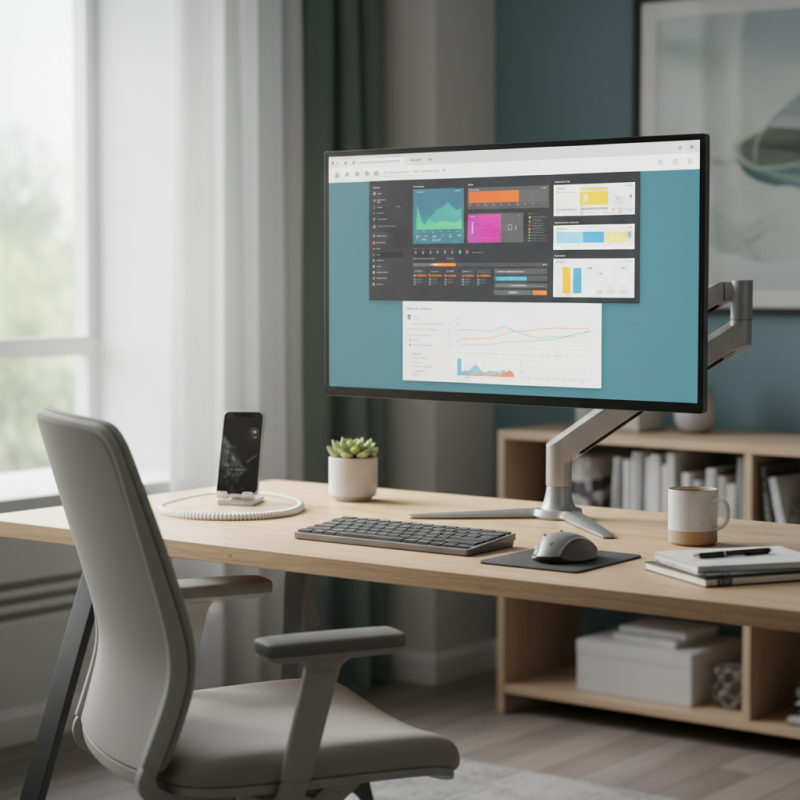
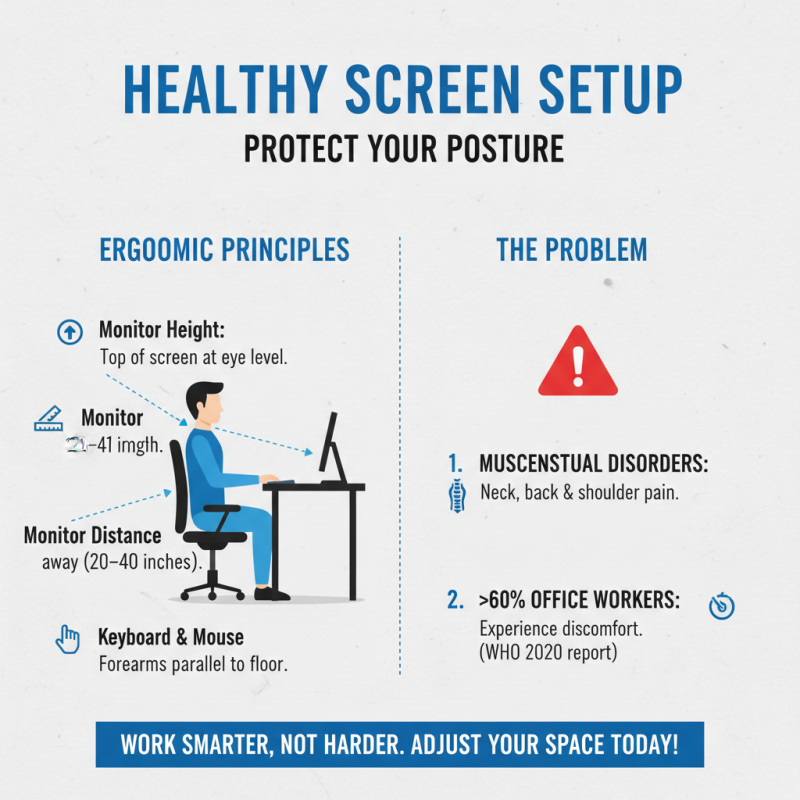
Creating an ergonomic computer display setup is vital for enhancing work performance. Research indicates that 80% of office workers experience discomfort without proper adjustments. It's essential to focus on key factors. Positioning the monitor at eye level reduces neck strain significantly. Ideally, your eyes should align with the top third of the screen.
Moreover, the distance between your eyes and the display should be at least an arm’s length. This helps avoid eye fatigue, which affects concentration. Studies show that around 60% of workers report tired eyes. A glare-free screen can further enhance visibility, minimizing distractions. Consider using adjustable stands to find the perfect height.
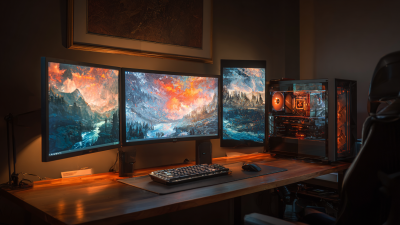
Lighting plays a crucial role too. Poor lighting can lead to headaches and reduced productivity. A balance between natural and artificial light is necessary. Many forget to adjust their screen brightness, which can lead to oversensitivity. It's a balance between comfort and functionality. Evaluate your workspace. Small adjustments can lead to significant improvements. Reflect on your setup regularly to identify areas for enhancement.
Essential Factors in Ergonomic Computer Display Setup
Optimal Monitor Resolution and Refresh Rate for Eye Comfort
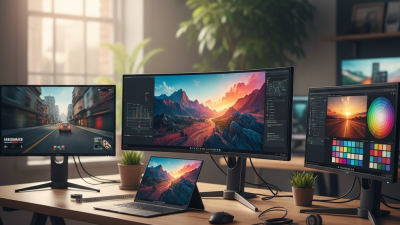
When it comes to optimal monitor resolution, clarity is key. A resolution of at least 1920x1080 (Full HD) is recommended for everyday tasks. However, higher resolutions like 2560x1440 (QHD) or 3840x2160 (4K) provide sharper images and reduce strain. The better the resolution, the less you squint. Research shows that clear displays can improve productivity by up to 30%. But not everyone can afford high-end displays.
The refresh rate also affects eye comfort. A standard 60Hz refresh rate suffices for basic tasks. Yet, for those who engage in gaming or video editing, a rate of 120Hz or higher is essential. Such rates help prevent screen tearing and motion blur. Data indicates that a higher refresh rate can reduce motion sickness by as much as 50% in sensitive individuals. There’s a spectrum of comfort levels; many users feel overwhelmed by too many details on the screen.
However, achieving optimal settings is tricky. Not all monitors can reach high resolutions or refresh rates. Users may also face challenges in adjusting settings to their preferences. Experimenting with brightness and contrast can help find a balance. Some may find themselves still adjusting weeks later. It’s a continual process that requires reflection and recalibration for the best results.
Adjusting Brightness and Contrast to Reduce Eye Strain
Adjusting brightness and contrast is fundamental for reducing eye strain. Studies show that about 50% of computer users experience discomfort. This issue often stems from poor display settings. Eye strain can result from glare, light reflection, or overly bright screens. Employing the right brightness can alleviate these symptoms.
Optimal brightness typically aligns with the ambient light of your workspace. If your screen is too bright, it can cause fatigue. Conversely, a screen that is too dim may lead to squinting. Research indicates that adjusting contrast can enhance text clarity. For instance, a contrast ratio of at least 1000:1 is often recommended for ideal visibility.
Inconsistent lighting conditions also play a role in eye strain. A well-lit environment can help balance screen brightness. Nonetheless, achieving perfect conditions remains challenging for many users. Often, individuals overlook small adjustments that make a significant difference. Regular breaks from screen time are also imperative. A practice known as the 20-20-20 rule suggests looking away every 20 minutes for 20 seconds. This small shift can mitigate discomfort and enhance productivity over time.
Essential Computer Display Tips for Optimal Work Performance
| Tip |
Description |
Recommended Level |
Impact on Eye Strain |
| Adjust Brightness |
Set the display brightness to match the ambient light. |
70%-80% |
Reduces glare and promotes comfort. |
| Modify Contrast |
Increase contrast for clearer text and images. |
High enough to distinguish elements. |
Helps reduce visual strain during prolonged use. |
| Use Blue Light Filters |
Apply filters to minimize blue light exposure. |
During evening hours |
Reduces disruption to sleep cycle. |
| Take Regular Breaks |
Follow the 20-20-20 rule to allow eye rest. |
Every 20 minutes |
Alleviates fatigue and improves focus. |
| Position Yourself Correctly |
Maintain a proper distance and angle from the screen. |
At least 24 inches away |
Reduces neck and eye strain. |
Importance of Proper Screen Positioning for Posture Health
Proper screen positioning is critical for maintaining good posture. Research indicates that improper monitor height and distance can lead to musculoskeletal disorders. According to a 2020 report by the World Health Organization, over 60% of office workers experience discomfort related to screen use. This emphasizes the need to arrange your workspace with care.
A monitor should ideally be at eye level. This encourages an upright posture, reducing strain on the neck and back. The screen should also be about an arm's length away. However, many people neglect this recommendation. For instance, just glancing down at a screen can lead to tension headaches or shoulder pain. The average worker spends more than eight hours a day in front of their computers. Yet, many fail to adjust their screens adequately.
Lighting plays a role too. Bright lights can lead to glare on screens, causing squinting and strain. It’s not just about the screen setup, though. People often forget to take breaks. The 20-20-20 rule suggests looking at something 20 feet away for 20 seconds every 20 minutes. In the workplace, this simple habit is overlooked, yet it’s crucial for eye health and overall comfort.
Utilizing Blue Light Filters for Long-Term Visual Health
Long hours in front of screens can lead to significant eye strain. Many individuals experience discomfort after prolonged computer use. According to the Vision Council, approximately 70% of adults experience some form of digital eye strain. This often includes symptoms like dryness, irritation, and blurred vision.
One effective way to mitigate these issues is through the use of blue light filters. Blue light, emitted by digital screens, can disrupt sleep patterns and contribute to eye fatigue. Research suggests that filtering out blue light can significantly improve visual comfort. A study published in the Journal of Optometry found that individuals using blue light filters reported a 25% reduction in eye strain symptoms.
Incorporating blue light filters into your daily routine is essential for long-term eye health. Whether using special glasses or software solutions, the key is consistency. Yet, many users may not fully apply these methods. They might forget to enable filters or overlook their importance. This lapse can lead to worsening symptoms. Regular breaks and proper lighting also matter. Taking these steps can enhance work performance and visual comfort.